

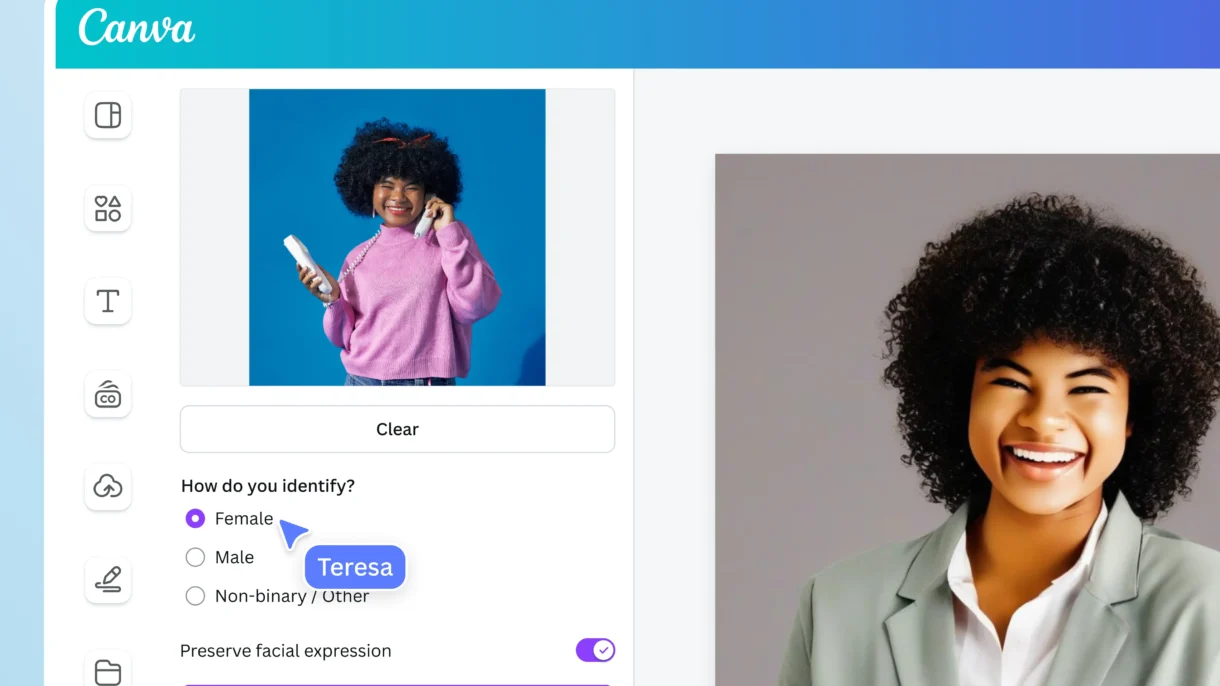
Creating a professional headshot used to require hiring a photographer and spending hours in editing. But with Canva’s AI headshot generator , you can now turn a simple selfie or casual photo into a polished, studio-quality portrait — all within minutes and without any design experience.
To get started, make sure you have a Canva account (free or Pro). Then follow these steps:
- Log in to Canva
- Search for “AI Headshot” in the search bar
- Click on the “AI Headshot Generator” result
- Upload a clear photo of yourself — ideally a well-lit, front-facing image with a plain background
- Let Canva’s AI process your image and generate multiple professional variations
You’ll see options with different styles like:
- Classic business attire
- Casual modern looks
- Studio lighting effects
- Background blur or replacement

Choose the one that best suits your needs and click to add it to your design!
Once you’ve generated your AI headshot, you can easily integrate it into various designs:
- LinkedIn profile picture
- Resume or CV photo
- Company team page
- Marketing banners
- Business cards
Canva also allows you to:
- Crop or resize the image for different platforms
- Apply filters or adjust colors
- Add frames or overlay text
- Download in multiple formats (PNG, JPG, etc.)
This makes it incredibly easy to maintain a consistent and professional brand image across all your digital and print materials.
If you want more control over your final look, try these tips:
- Use good lighting and a clean background when taking your original photo
- Try different facial expressions or outfits to see which AI versions you prefer
- Combine AI headshots with Canva’s templates for resumes or social media headers
- Use the background replace feature to match your company branding or personal style
💡 Pro Tip: If you’re creating headshots for a team or group, Canva’s AI works just as well on multiple uploads — making bulk edits a breeze.
Final Thoughts
Using the AI headshot generator in Canva is a game-changer for professionals, entrepreneurs, and content creators who need high-quality images fast. It eliminates the need for expensive photo sessions while still delivering polished, camera-ready results.
Start experimenting today — upload your photo and let Canva’s AI do the rest!
📷 Want more Canva and AI tips? Follow us for weekly updates on smart tools, design hacks, and how to build your personal brand visually.
Frequently Asked Questions
Do I need a Canva Pro account to use AI Headshot?
While some features may be limited to Pro users, many AI headshot tools are available in the free version of Canva.
Can I use AI headshots for commercial purposes?
Yes! As long as you own the rights to the original photo, you can use the AI-generated version for professional or business use.
How accurate is Canva’s AI Headshot generator?
It depends on the quality of your input photo, but overall, the AI does an excellent job of enhancing and stylizing portraits for professional presentation.
0 Comments